> For the complete documentation index, see [llms.txt](https://docs.themeupstudio.com/crimson/llms.txt). Markdown versions of documentation pages are available by appending `.md` to page URLs; this page is available as [Markdown](https://docs.themeupstudio.com/crimson/custom-settings/post-settings.md).
# Post Settings
Crimson includes a dedicated **Post** settings group that controls how your posts are rendered by default across the site. Right now, Crimson provides **one** key setting in this group:
* **Default Post Template**
This setting defines the **global default layout** for all posts—so when you publish a new post, Crimson already knows whether it should show a **Table of Contents**, whether that TOC should be **sticky**, and whether a **sidebar** should appear.
#### Where to find this setting
In Ghost Admin:
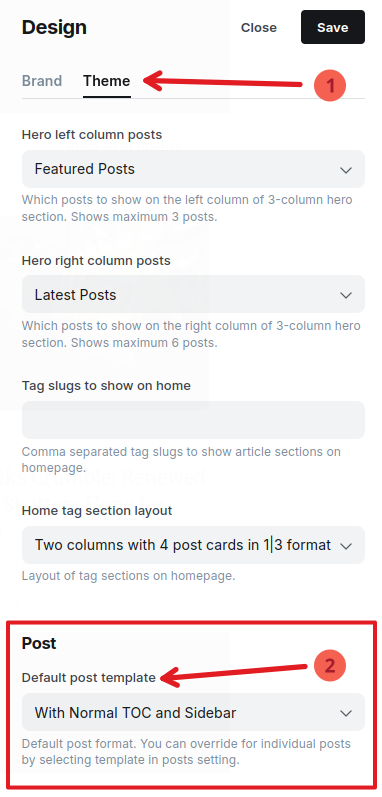
**Settings → Design & Branding →** *click* **Customize →** *open the tab* **Theme →** *scroll down to see* **Post**
Then look for: **Default post template**
Post settings
***
### Default post template
#### Purpose
The **Default Post Template** sets the *baseline post layout* for your entire publication.
It controls:
* Whether a **Table of Contents (TOC)** appears
* Whether the TOC is **sticky** (stays visible while you scroll)
* Whether a **sidebar** appears (and whether it stays sticky)
* Whether the layout is optimized for long-form reading vs minimal distraction
#### Why this matters
Choosing a good default improves:
* **Reader experience** (especially for long tutorials)
* **Navigation** (TOC helps readers jump between sections)
* **Consistency** across your site (posts feel uniform)
* **Time on page** (TOC + sidebar often increases engagement on long posts)
#### Possible values
This setting allows to select from:
1. With Normal TOC and Sidebar (Default)
2. With Sticky TOC and No Sidebar
3. With Normal TOC and No Sidebar
4. With Sticky Sidebar and No TOC
5. With No TOC and No Sidebar
***
### Template options explained
Below are the available options and what each one means in practical terms.
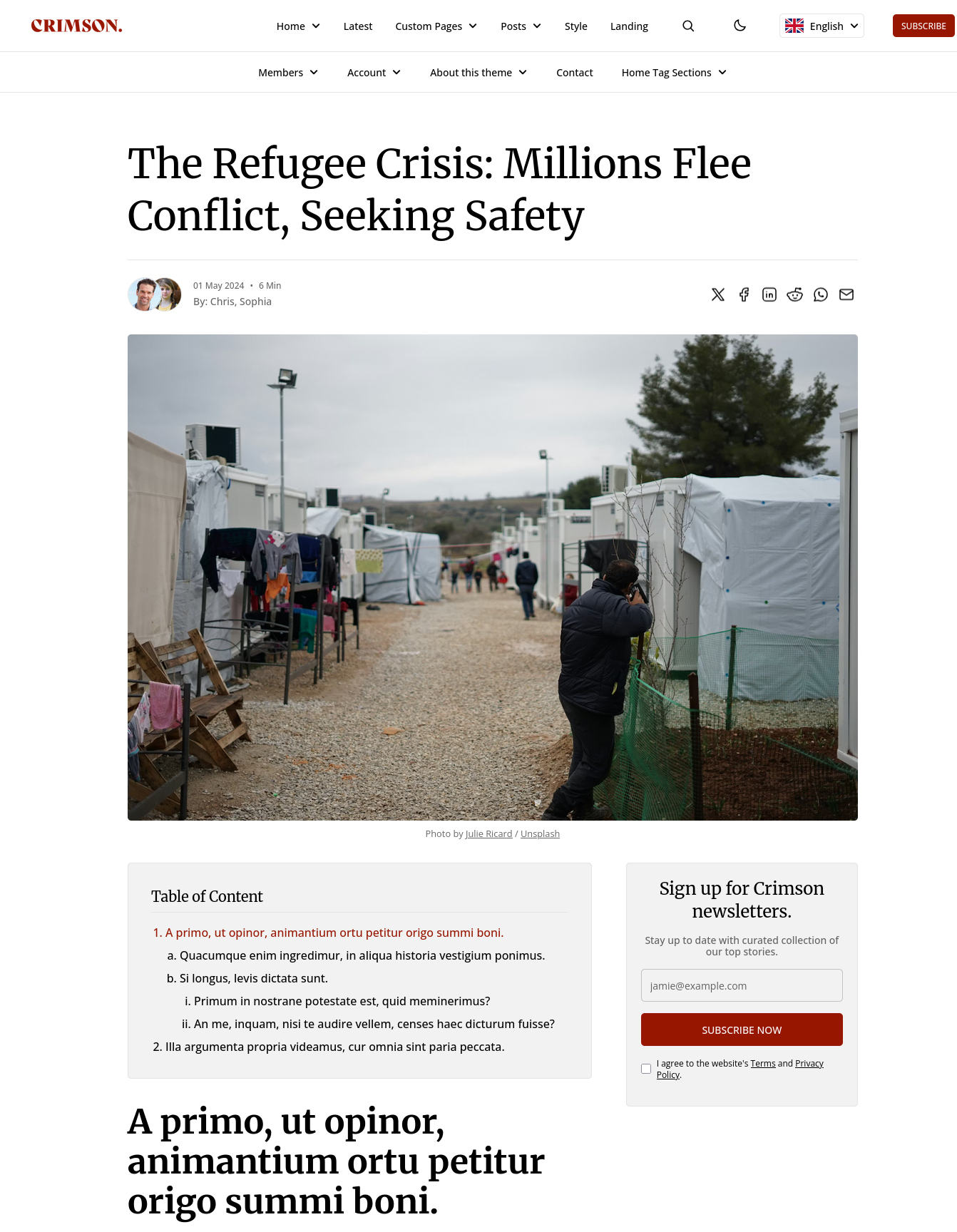
#### 1. With Normal TOC and Sidebar (Default)
Example:
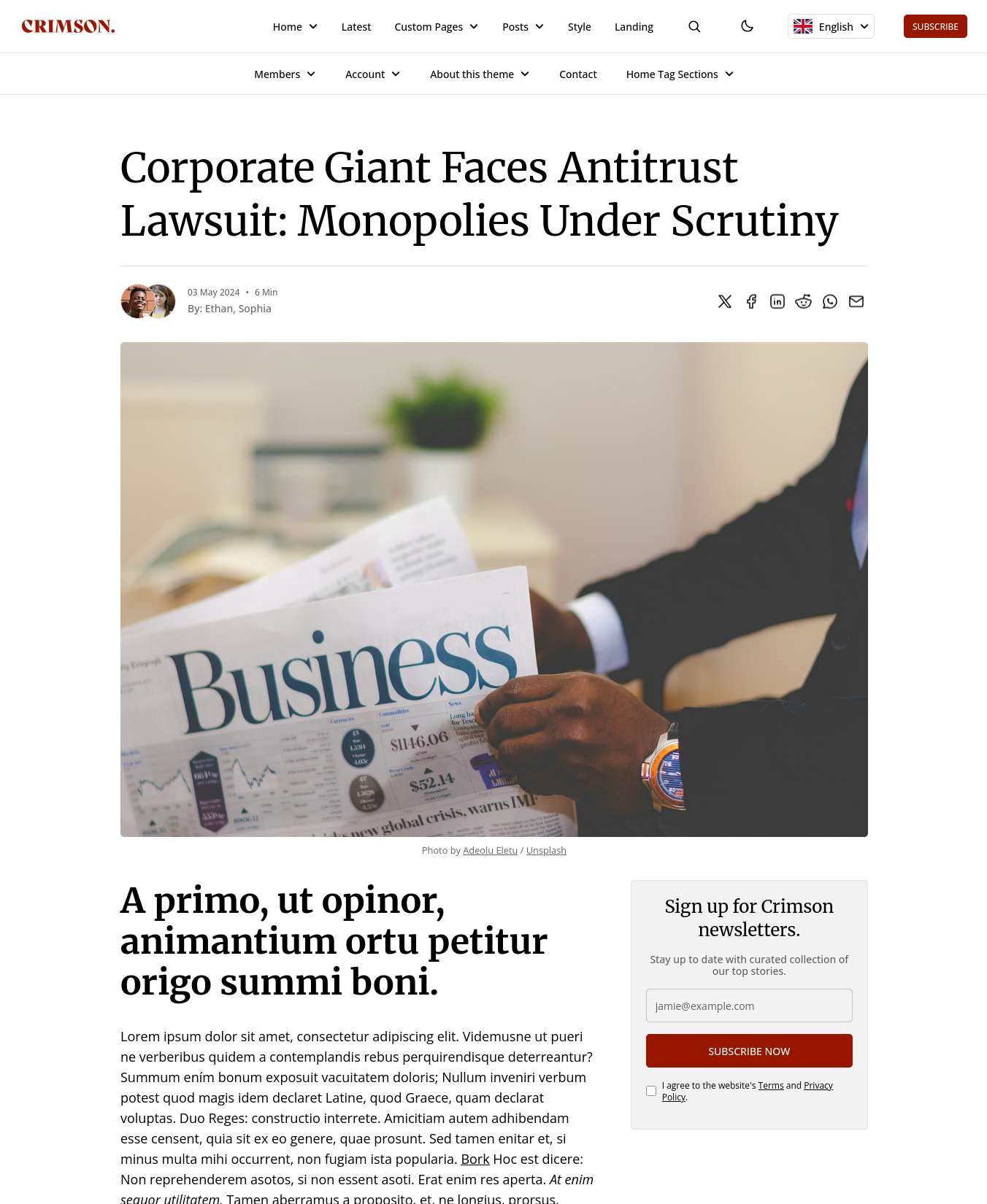
Normal TOC and Sidebar
**What you get**
* A **Table of Contents** appears (typically near the top of the post layout)
* The TOC is **normal**, meaning it scrolls away as the reader scrolls
* A **sidebar** appears beside the content
**Best for**
* General blogs and publications
* Medium-length posts (where a sticky TOC may feel too “busy”)
* Sites that want structure, but not too much on-screen UI
**Good to know**
If your posts are mostly short (under \~800 words), TOC might feel unnecessary—consider a “No TOC” template instead.
***
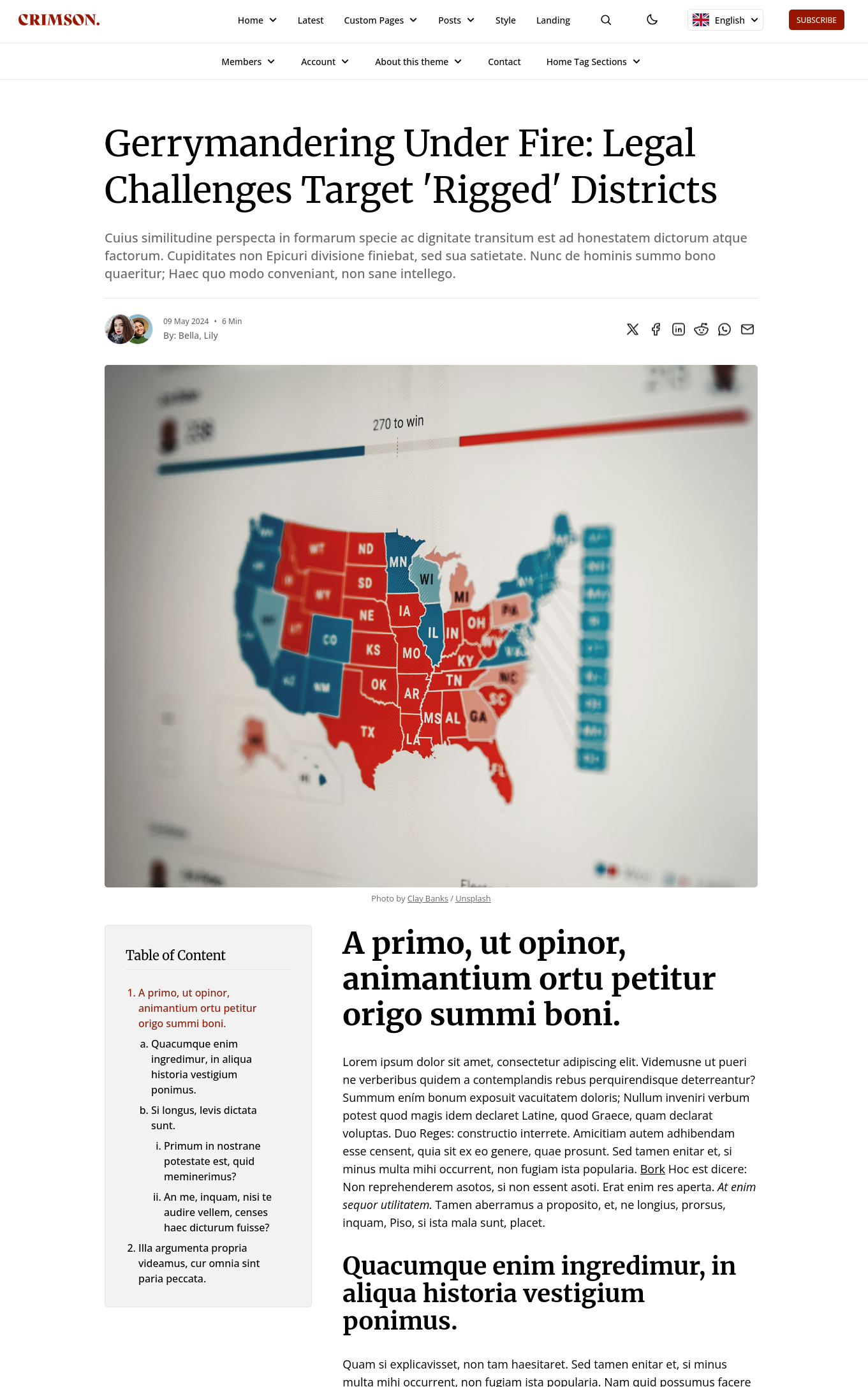
#### 2. With Sticky TOC and No Sidebar
Example:
With Sticky TOC and no Sidebar
#### What you get
* A **sticky TOC** that stays visible while scrolling (great for navigation)
* **No sidebar**, so the layout stays clean and focused
#### Best for
* Long tutorials, documentation-style posts, guides
* Posts with many headings (H2/H3)
* Readers who want quick section jumping without extra sidebar content
#### Good to know
Sticky TOC works best when your content uses proper headings (H2/H3). If a post is written as plain paragraphs with few headings, the TOC won’t be very helpful.
***
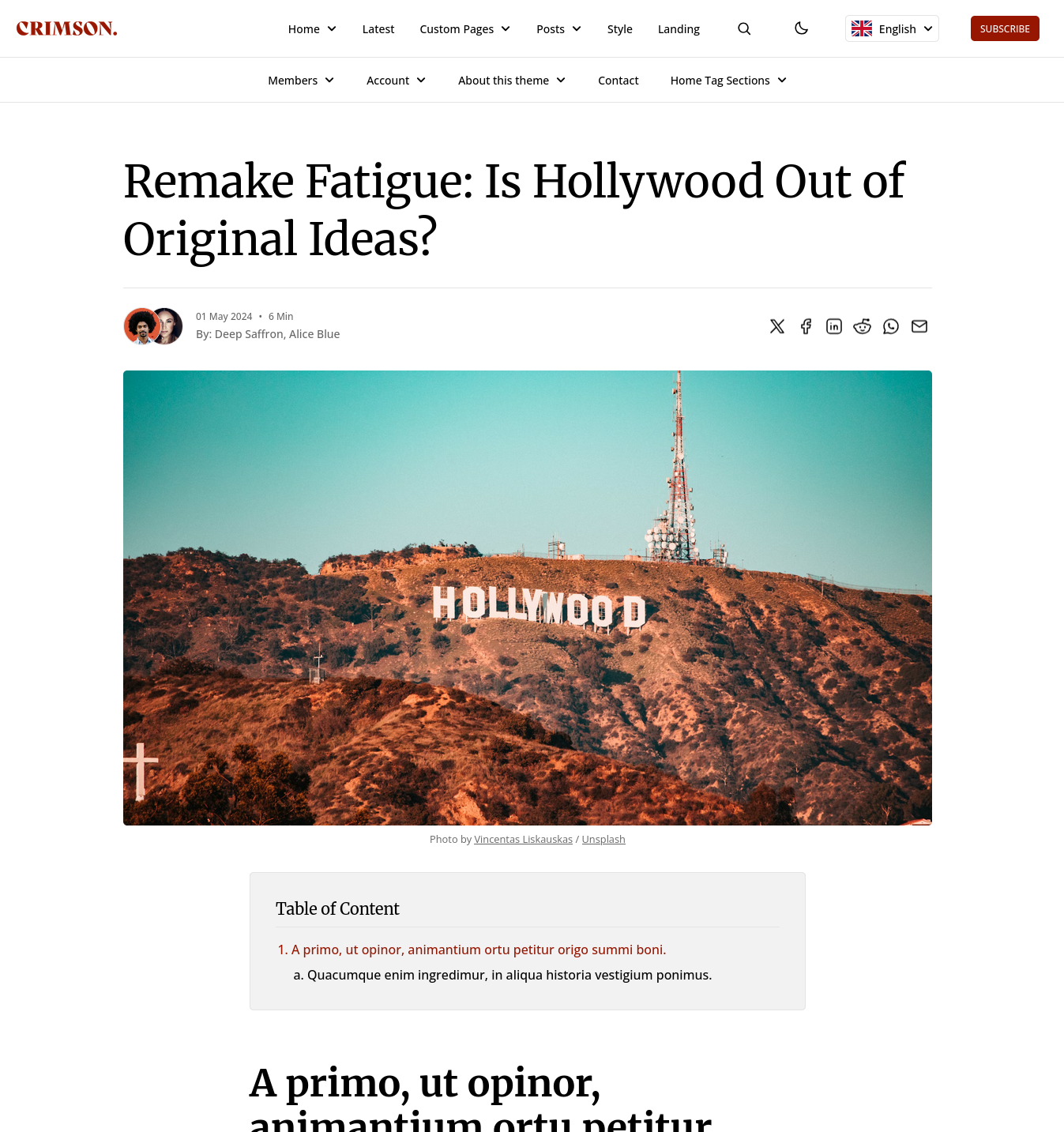
#### 3. With Normal TOC and No Sidebar
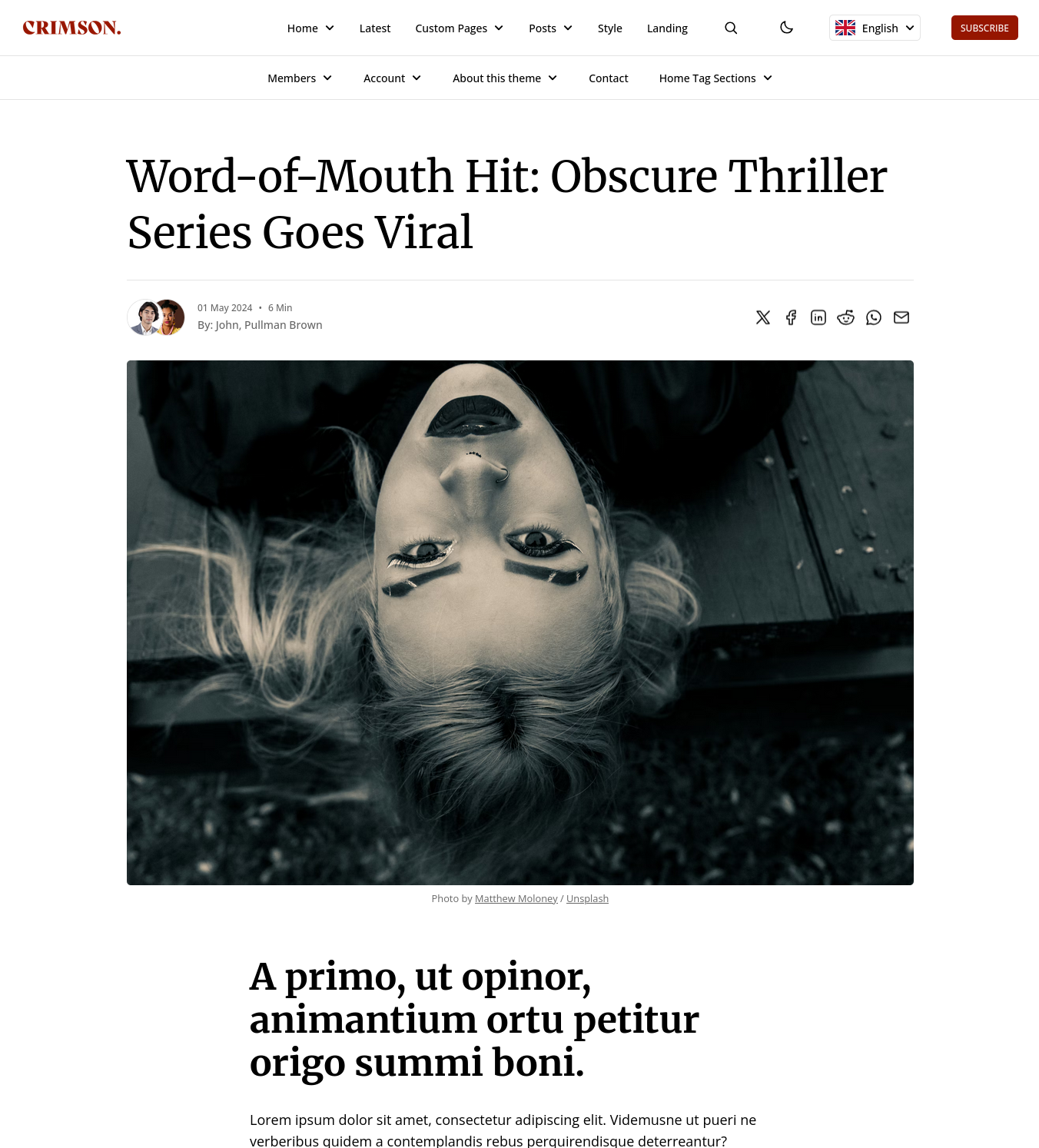
Example:
With Normal TOC and No Sidebar
#### What you get
* A **normal (non-sticky) TOC**
* **No sidebar**, giving more space to the main content
#### Best for
* Clean editorial posts where you still want a TOC
* Medium-length posts that benefit from structure
* Minimal layouts that still support navigation
#### Good to know
This is often the “best of both worlds” when you want TOC support without the visual weight of a sidebar.
***
#### 4. With Sticky Sidebar and No TOC
Example:
With Sticky Sidebar and No TOC
#### What you get
* A **sticky sidebar** (stays visible while scrolling)
* **No TOC**
#### Best for
* Publications where the sidebar is the star (newsletter signup, featured links, ads, author box, etc.)
* Shorter posts where a TOC is not needed
* Layouts that prioritize calls-to-action and secondary content
#### Good to know
This template is a strong conversion-focused option if your sidebar contains membership CTAs or key navigation.
***
#### 5. With No TOC and No Sidebar
Example:
With No TOC and No Sidebar
#### What you get
* **No TOC**
* **No sidebar**
* A clean, distraction-free reading experience
#### Best for
* Essays, storytelling, opinion pieces
* Short posts, announcements, personal notes
* A minimal “writer-first” style blog
#### Good to know
If your audience reads mostly on mobile, this can feel excellent because it removes extra UI elements and keeps the content front and center.
***
### Overriding the template for a single post
Even though this setting sets the **default**, Crimson allows you to override the layout on a **per-post basis**.
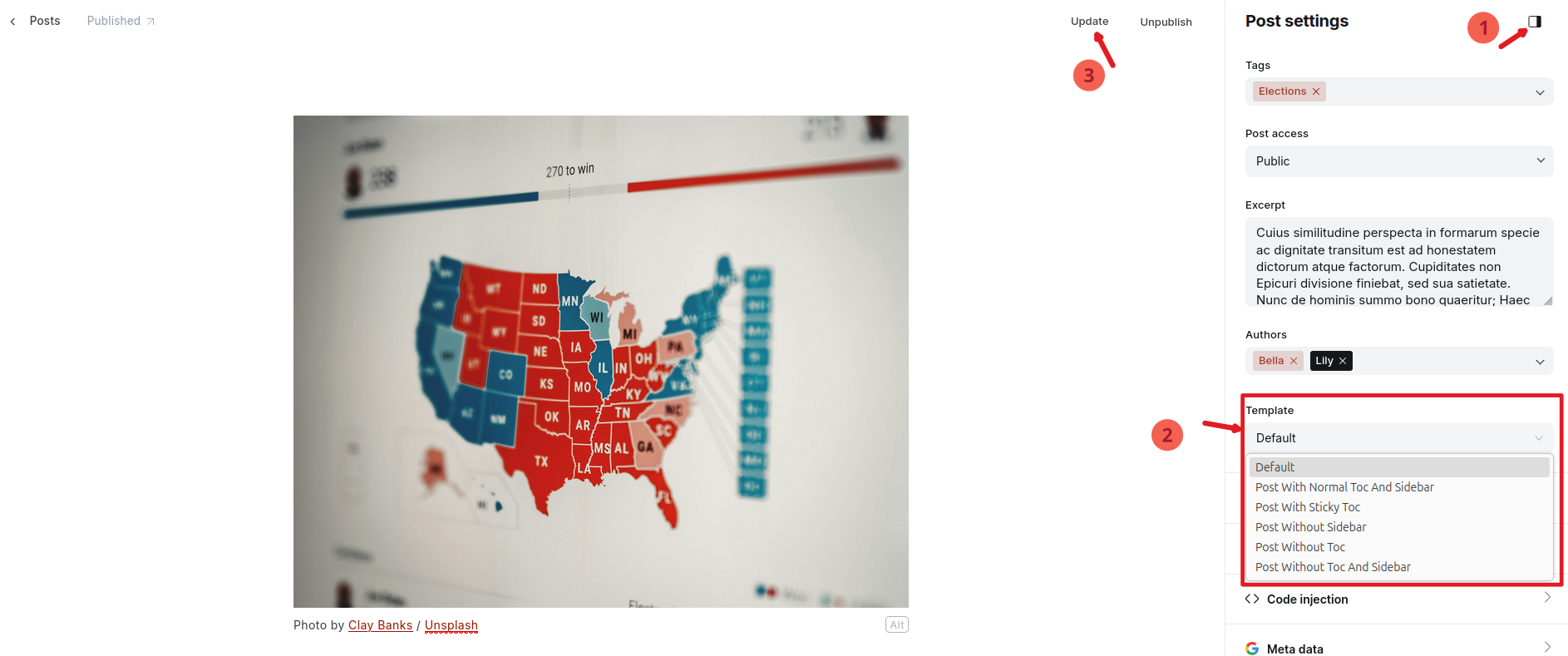
#### How to override the post template (per post)
1. Open the post in **Ghost Editor**
2. In the right sidebar, open **Post settings** (the settings panel)
3. Find the **Template** dropdown
4. Select the template you want for that specific post
5. Update/Publish the post
Override default post template for a single post
#### When should you override?
Override a single post template when:
* A post is unusually long (use Sticky TOC)
* A post is short (use No TOC / No Sidebar)
* A post is a landing page style article (use sidebar-focused layout)
* You want a different reading experience for a special series